

October 11, 2026 · 7 min read
How to Send Digital Invitations for Any Event
Learn how to send digital invitations the easy way: design, collect RSVPs automatically, send reminders, and track every reply in one place.
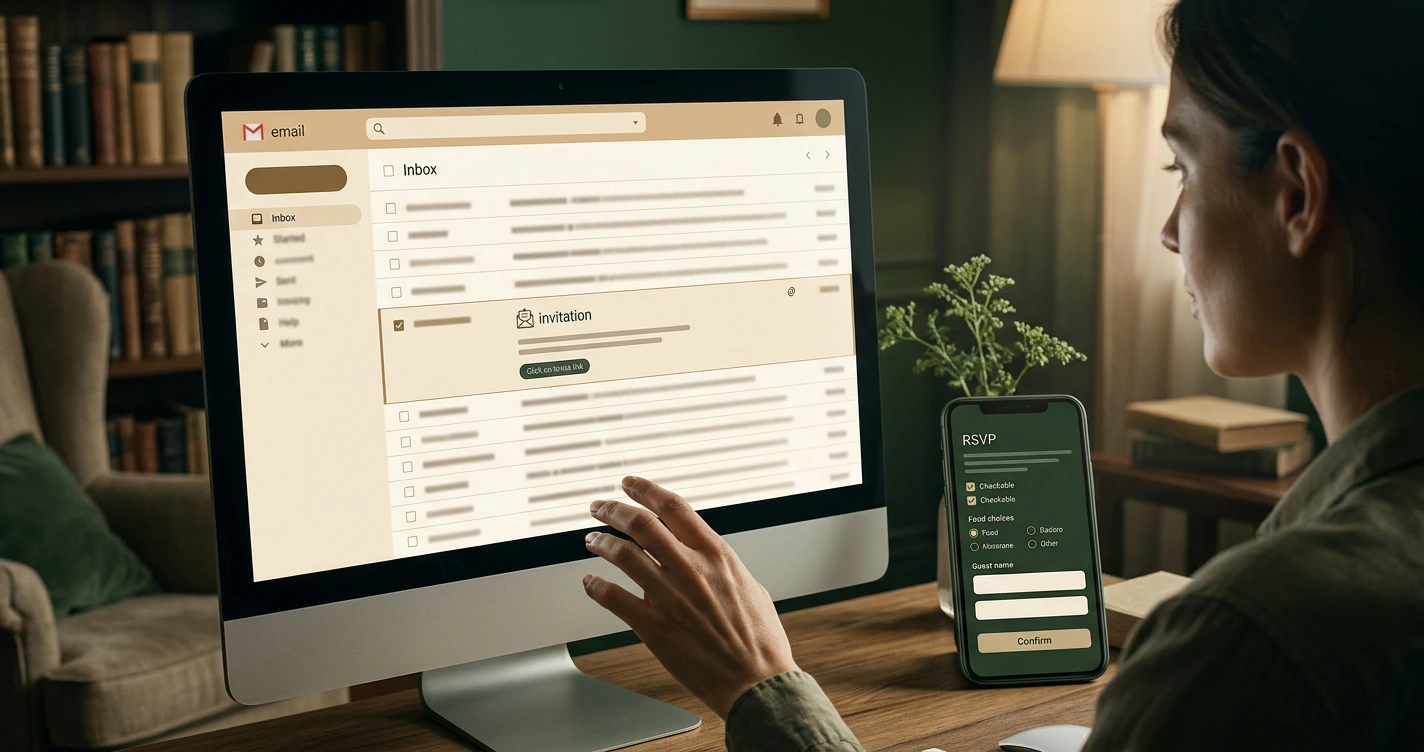
To send a digital invitation, you design the invite, add an RSVP form, share the link by email or message, then watch the replies arrive in one place. The whole process takes minutes, costs little or nothing, and gives you something paper never could: a live view of who has seen your invite and who still needs a nudge.
This guide walks through how to send digital invitations for a wedding, a birthday, or a work event, and how online invitations handle the parts that usually eat your evenings: collecting responses, chasing stragglers, and keeping every detail straight.
Why Send Digital Invitations: Time and Money Saved
Digital invitations save money because they remove printing and postage from the budget entirely, and that cost is climbing. The USPS Forever stamp rises to 82 cents in July 2026 (CBS News, 2026), so a 100-guest paper mailing starts adding up before you count the cards themselves. Online invitations charge nothing per guest, whether you invite 20 people or 200.
The time savings are just as real. A paper invite means designing, ordering, waiting, stuffing envelopes, and addressing each one by hand. A digital invite skips all of that. You build it once and share a single link.
Speed matters most when plans change. If your venue shifts or the start time moves, you update the invite and everyone sees the new details instantly. No reprints, no confused guests holding an outdated card.
Fewer manual steps also means fewer mistakes, which is where a lot of host stress comes from. For a wider look at the traps worth sidestepping, see our guide to common event planning mistakes and how to avoid them.
Designing Invites That Match Your Event Style
Good invite design does one job first: it tells guests what kind of event this is before they read a word. A heavy serif font and muted palette signal a formal wedding. Bright color and a playful layout signal a kid's birthday. Set the tone with your template choice, then fill in the details.
Keep the essentials visible without scrolling: host, event name, date, time, location or link, and the RSVP deadline. Everything else is secondary. If you need to add dress code, parking notes, or a gift registry, put those below the core details so they never compete with the basics.
Color sets the mood, so pick a small palette and stick to it. Two or three colors drawn from your venue, season, or theme read as deliberate, while six competing shades read as busy. Match the invite palette to the day itself and guests arrive already in the right frame of mind.
Pay attention to the small screen. Most guests open invitations on a phone, so test your design there before sending. A layout that looks balanced on a laptop can crowd the top of a phone screen, pushing your RSVP button out of easy reach.
Collecting RSVPs and Contact Details Automatically
Collect RSVPs automatically by attaching a response form to the invite itself, so a guest taps "yes" and their details save to your list in the same moment. This removes the weakest link in paper invitations: the mailed-back card that never comes. Digital RSVP forms consistently pull a higher response rate than paper cards, because replying takes seconds instead of a stamp and a trip to the postbox.
The form is also where you gather the details that save you work later. Ask for the things you actually need, and nothing you don't:
- Attendance: a simple yes, no, or maybe.
- Headcount: how many in their party, if plus-ones apply.
- Dietary needs or allergies, for catered events.
- A song request, a seat preference, or a note, where it fits the occasion.
Because the answers attach to each name, you avoid the scramble of cross-referencing a spreadsheet against a pile of texts. A dedicated online guest list manager keeps every response tied to the right guest from the first reply onward.
Decide your plus-one and children rules before the form goes live, since the invite is where guests learn what to expect. Spelling that out early prevents awkward follow-up conversations once replies start arriving.
Sending Reminders and Tracking Opens
Send reminders automatically and track opens so you always know who still needs a nudge. Email gives you strong reach to work with: the median open rate across campaigns sits at 43.46 percent (MailerLite, 2025), and a clear, specific subject line lifts that further. "You're invited: Maria's 40th, 14 March" beats a vague "Hello" every time.
Schedule reminders rather than sending them by hand. A good rhythm for most events looks like this:
- Initial invite, as soon as the date is locked.
- A gentle reminder to non-responders about two weeks before the deadline.
- A final call a few days before RSVPs close.
Open and click tracking turns guesswork into a short to-do list. Instead of wondering whether Aunt Jo saw the invite, you can see that she opened it twice but hasn't replied, which tells you a quick personal message will do more than another automated email.
Reminders work best when they carry the key detail, not just a prompt. Repeat the date, time, and RSVP deadline in every nudge so a guest can act without hunting for the original message.
Managing Guest Responses in One Dashboard
Manage responses in a single dashboard so your running headcount updates itself as replies land. This is the quiet advantage of online invitations: every yes, no, and maybe flows into one view, with dietary notes and plus-ones attached, instead of scattering across inboxes and group chats. One screen answers the question you ask most, which is simply "how many are coming?"
A live count feeds every other planning decision. Catering quantities, table numbers, and favor counts all hang off that number, so having it accurate and current saves repeated recounting. When the count shifts, the downstream numbers shift with it.
This is where Wdplan fits naturally. It keeps your guest list, RSVPs, budget, tasks, and seating in one place, so a confirmed reply can flow straight into your drag-and-drop seating chart without re-entering a single name. The guests who said yes are the ones you seat, and the tool keeps those lists in sync.
A shared dashboard also helps when you aren't planning alone. A partner, a family member, or a co-host can see the same responses you do, so nobody double-messages a guest who already replied.
Etiquette for Digital Versus Paper Invitations
The etiquette rule is simple: match the channel to the formality of the event and the comfort of your guests. Digital invitations are widely accepted in 2026, including for weddings, but a few situations still reward a lighter touch and a mix of methods.
Use these guidelines by event type:
- Weddings and formal events: a polished hosted invite or email works well, with mailed paper cards reserved for guests who prefer them.
- Birthdays and casual parties: a group message or email invite is expected and easy.
- Corporate events: email with a tracked RSVP link keeps attendance data clean and shareable.
Age and habits matter more than the occasion. For an older relative who doesn't check email, a printed card or a phone call shows care, and there's no rule against mixing paper for a handful of guests with digital for everyone else.
Keep the digital version just as considerate as a paper one. Address guests by name where you can, give a real RSVP deadline, and reply to questions promptly, because the tool handles logistics while the warmth still comes from you.
Your Next Step
Pick your next event, even a small one, and build the invite before you order anything on paper. Start with the guest list and a simple RSVP form, share the link, and let the responses collect themselves while you focus on the celebration. You can set up your guest list and first digital invite in Wdplan for free with a sample event, so you can see the whole flow before a single stamp is bought.